How to
How to remove background noise from a voice recording on Android
Traffic, wind, a café behind you. Four ways to clean up a recorded conversation — on the phone while recording, on the phone afterwards, on a computer, or by uploading it — and which ones handle street noise.
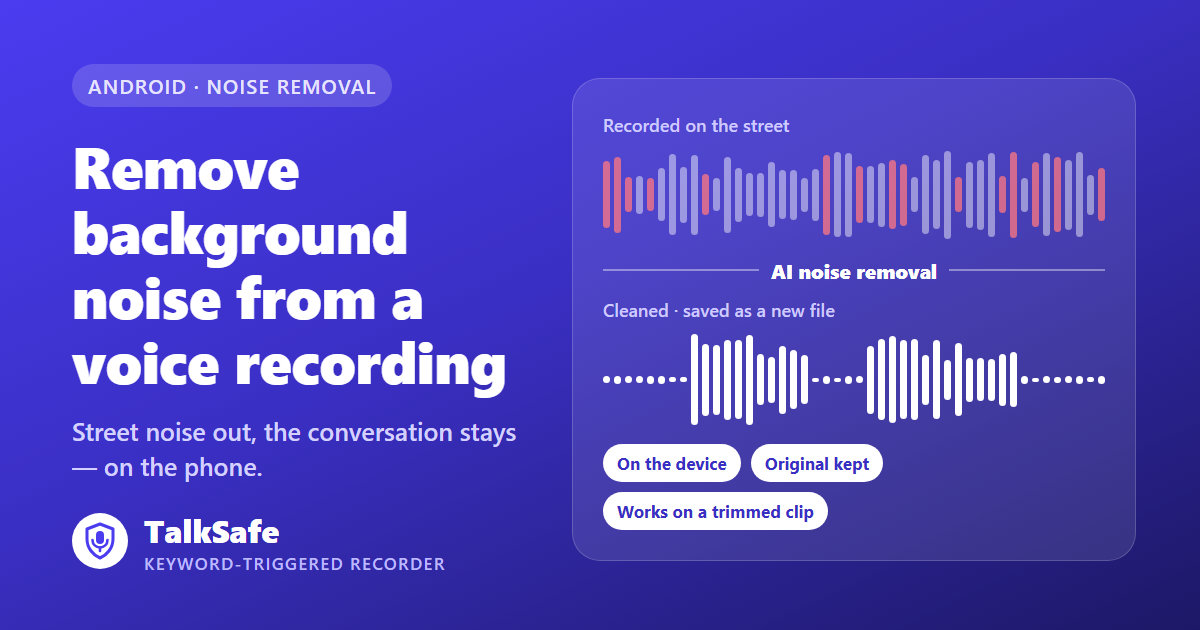
You recorded the conversation. You play it back on the way home, and half of it is a bus pulling away.
The words are in there. They are just under everything else.
Noise removal is no longer a studio job. Where it runs, and what it does to the original, matters more than which button you press.
Four ways, side by side
| Method | When it works | Where the audio goes | Original | Street or traffic noise |
|---|---|---|---|---|
| Recorder that reduces noise while recording (Pixel Recorder Clear voice) | During recording, Pixel 9 series | Recorder app | A playback toggle lets you hear it without reduction | Aimed at background noise in general |
| App that cleans the file afterwards (TalkSafe AI noise removal) | After recording, also on a trimmed clip | Processed on the phone | Kept; the cleaned version is a new file | Yes, in two-person tests |
| Desktop software (Audacity Noise Reduction) | After recording | Your computer | Untouched unless you overwrite it | Not suitable, per its manual |
| Web service (Adobe Podcast Enhance Speech) | After recording | Uploaded to the service | You download a cleaned copy | Built to separate speech from noise |
The rest of this page goes through what each one actually asks of you.
During recording: Pixel Recorder’s Clear voice
Google added a Clear voice setting to the Recorder app on Pixel phones in December 2024. It reduces background noise while recording, and on playback a toggle lets you hear the recording without the reduction.
The catch is the conditions. Reporting at the time described it as working only with the internal microphone on the Pixel 9 series, in mono. A later update renamed it Auto Clear Voice.
If you have one of those phones and you know in advance that you will be somewhere loud, it is the least effort of anything here. If you have any other phone, it is not an option.
On a computer: Audacity
Audacity is free, and its Noise Reduction effect is the classic way to do this. You select a few seconds where there is only noise, capture a noise profile, then apply the effect to the whole recording.
It is good at what it was built for: steady sounds such as hiss, hum or an air conditioner. Audacity’s own manual says it is not suitable for irregular background noise such as traffic or an audience. That is exactly what a street recording is full of.
It also takes a computer, a transfer, and some patience with the sliders. Push the settings too far and the manual warns of artifacts — short random bursts of tone.
By uploading: web services
Tools such as Adobe Podcast Enhance Speech work by uploading your file. The service processes it and you download a cleaned version. They are built for speech and can be impressive.
Two things are worth knowing before you use one for a real conversation. First, uploading means a copy of the conversation goes to that service. For a podcast that is fine. For a private conversation with someone else in it, it is a decision worth making on purpose. Second, free tiers come with limits on length and daily use, and those change.
On the phone, afterwards: TalkSafe
TalkSafe has AI noise removal that you apply to a recording after it is made.
- It runs on the device. Nothing is uploaded to clean the file.
- The original stays. The cleaned version is saved as a new file next to it.
- It works on a trimmed clip. Cut the two minutes that matter first, then clean just those.
In testing on two-person conversations recorded on the street, the traffic went and the conversation stayed.
This is the same app that starts recording when it hears a word you set in advance, with the screen locked, and keeps the 30 seconds before the start. On a street, those two features get you the recording in the first place; noise removal makes it listenable.
Keep the original, always
Noise removal produces a different version of the audio. That is the point of it, and it is also why the original matters.
If the recording might be used — in a complaint, a dispute, a claim — submit the cleaned copy if it is easier to follow, and keep the untouched original alongside it. Say that the copy was cleaned. The original is what shows nothing else was changed. More on handling files afterwards is in What to do with a recording, and what not to do with it.
Before you need it: record closer
No tool adds back what the microphone never caught. A few habits make the cleanup easier:
- Distance matters most. A phone on the table between two people beats a phone in a bag.
- Wind is the hardest noise. Turning your back to it, or stepping into a doorway, helps more than any setting.
- Speakerphone calls pick up the room. If you record a call that way, noise removal afterwards can take the background noise out. Why speakerphone is the route left on Android is in Why call recording stopped working on your Android, and what still does.
In short
- Steady hiss or hum, on a computer: Audacity.
- A Pixel 9 and a plan: Recorder’s Clear voice, set before you start.
- Studio-style results and no privacy concern: a web service, by upload.
- A street conversation you want to keep on your phone: TalkSafe’s AI noise removal, on the device, with the original kept.
How dedicated recorders compare with phones on sound quality is in The thing that separates recorders is when they start.
Feature availability for third-party tools reflects their documentation and reporting at the time of writing and can change. We make a recording app, as disclosed above.
How do I remove background noise from a voice recording on Android?
There are four routes: a recorder that reduces noise while recording, such as Clear voice in Google's Recorder app on the Pixel 9 series; an app that cleans the file afterwards on the phone, such as TalkSafe's AI noise removal; desktop software such as Audacity's Noise Reduction effect; or a web service you upload the file to, such as Adobe Podcast Enhance Speech.
Is there an Android app that removes background noise from a recording on the phone itself?
TalkSafe has AI noise removal. Applied to a finished recording or a trimmed clip, it strips background noise such as street sounds and leaves the conversation. Processing happens on the device, and the cleaned version is saved as a new file while the original stays as it was.
Can Audacity remove traffic noise?
Not well. Audacity's own manual describes its Noise Reduction effect as suited to steady noise such as hiss or hum, and not suitable for irregular background noise such as traffic or an audience. It works by learning a noise profile from a section with no speech.
Does removing noise change the recording as evidence?
It creates a different version of the audio, which is why the original should be kept. Submit the cleaned copy if it is easier to follow, keep the untouched original alongside it, and say that the copy was cleaned. TalkSafe's noise removal saves a new file and leaves the original as it was.
Do I have to upload my recording to remove the noise?
No. Web services such as Adobe Podcast Enhance Speech work by uploading the file, which sends a copy of the conversation to that service. On-device tools such as TalkSafe's AI noise removal process the file on the phone instead.
Can I clean only part of a recording?
Yes. In TalkSafe you can trim the section you need first — the trim is saved as a new file and the original stays — and then apply AI noise removal to that clip.